
To change the nameservers of a domain name, you need to do so at the registrar where it is currently registered. The following three scenarios explain what to do based on where your domain is registered and where it is hosted:
1. Domain registered elsewhere, hosted with us
If you want to host a domain registered elsewhere with us, you need to update its nameservers to ours at that domain’s current registrar. (Click here for more details about our nameservers.)
2. Domain registered with us, hosted with us
If your domain is registered with us and you want to host it with us, you don’t need to do anything. Our nameservers are set as the default for domains registered with us.
3. Domain registered with us, but you want to change its nameservers (e.g., to use a third-party hosting provider or DNS service like Cloudflare)
You can change the nameservers for domains registered with us via the KamHost Control Panel. Please follow the steps below:
Log in to your KamHost Control Panel at https://cp.kamhost.com.
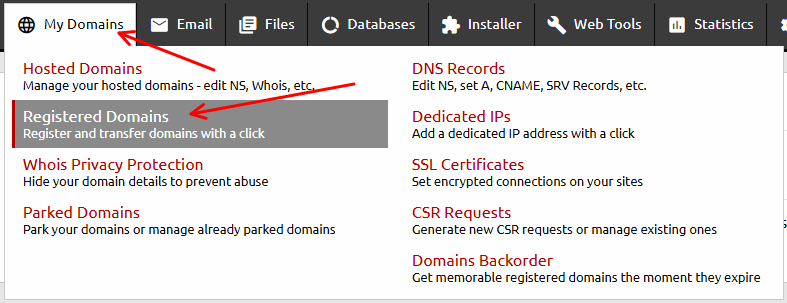
Open My Domains > Registered Domains from the navigation menu.
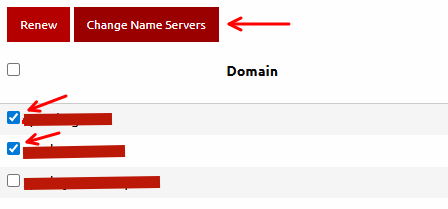
You’ll see the domain(s) you registered with us on the page. In front of each domain name, there is a checkbox. Select the checkbox for the domain(s) you want to update nameservers for, then click the Change Name Servers button.
After you click the Change Name Servers button, you will be forwarded to a page where you can enter the new nameservers. When you are done, click the Change Name Servers button. This will update the nameservers for the domain name(s).
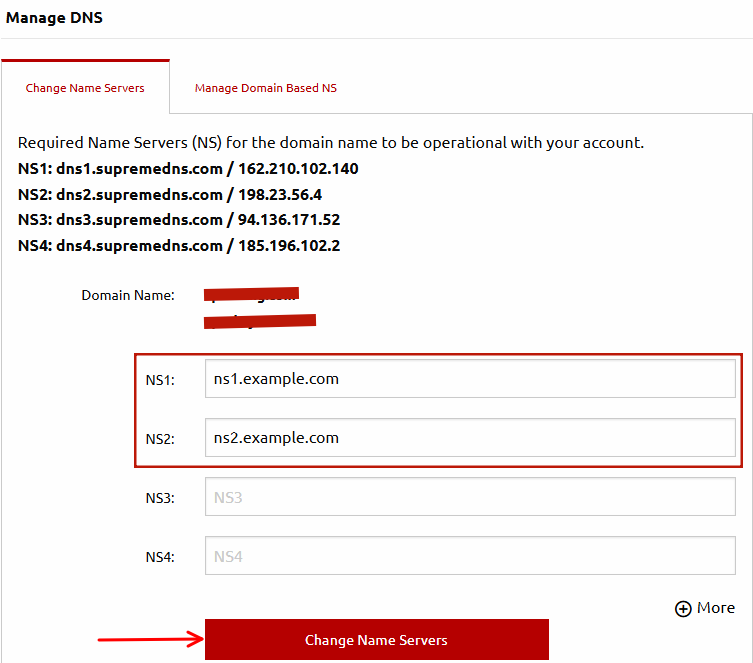
Note: You can update nameservers for multiple domains at the same time by selecting the checkboxes in front of the domains. We provide four nameservers by default. If your web hosting provider or DNS service gives you only two nameservers, replace the first two default nameservers with the new ones and leave the last two fields blank.
Important: Nameserver changes may require up to 24 hours to take effect.